Create your account
Start your digital journey with Clicool.
⚠️ Note: Optimized for Google Chrome environment.
Venue Image
Customize your brand. Upload images for your Web App.
Company Logo
Cover Photo
Your Google Database
The Clicool system saves everything in your private Google Drive space.
- Make sure you are logged into your main Google account.
- Click the blue button below. A new Google tab will open.
- Click the blue Google button "Make a copy".
- Very Important: Once the copy is made, return to this page to continue.
Connect the License
Paste this security code into your new Google Sheet.
Instructions: In the newly cloned Google sheet, go to the Settings / Impostazioni tab (at the bottom). You will find a row highlighted in RED called TOKEN LICENZA. Paste this code into the empty cell next to it.
Step 5: Publish your Web App
Follow these simple steps in your Google Sheet to activate the system.
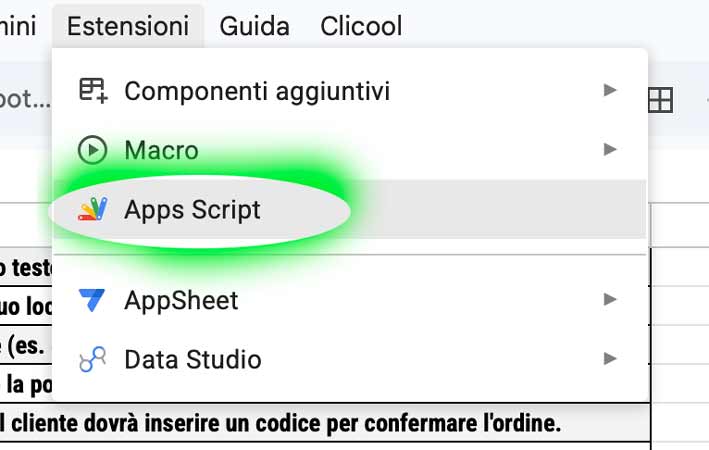
1. Open Apps Script
From your Google Sheet, click on Extensions at the top and then on Apps Script.
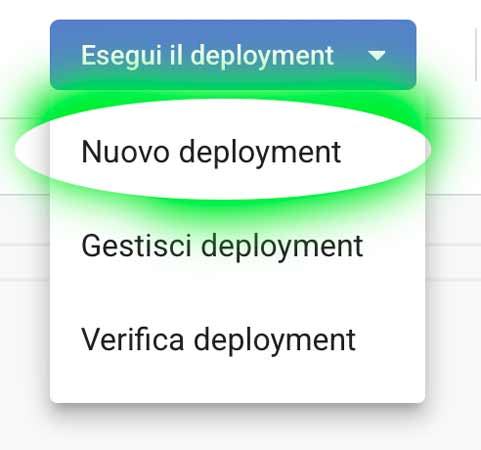
2. New Deployment
At the top right, click the blue Deploy button and select New deployment.
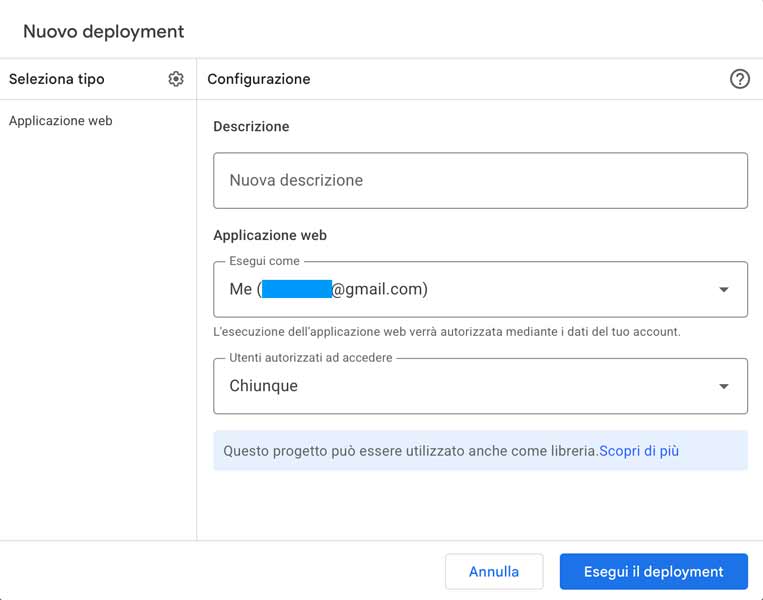
3. Configuration
Select Web App. Set Execute as: Me and Access: Anyone. Click Deploy.
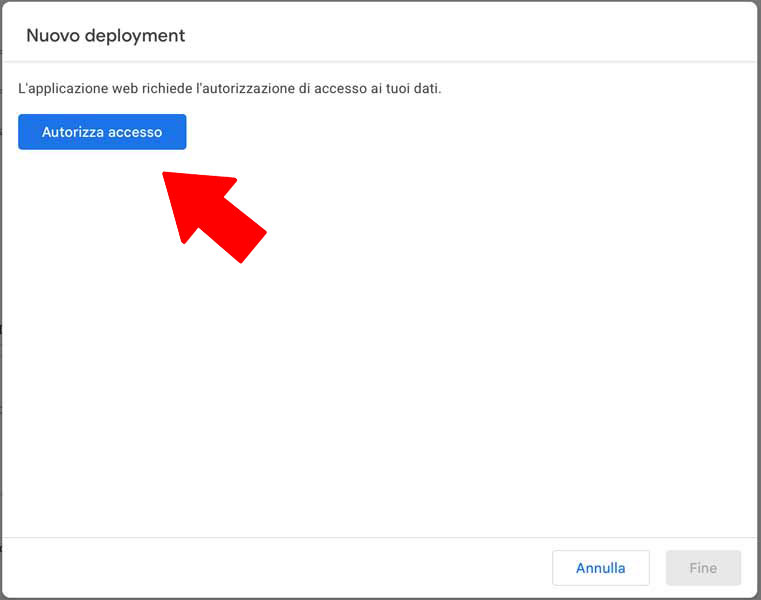
4. Authorize access
Google will ask for permissions. Click Authorize access and select your email.
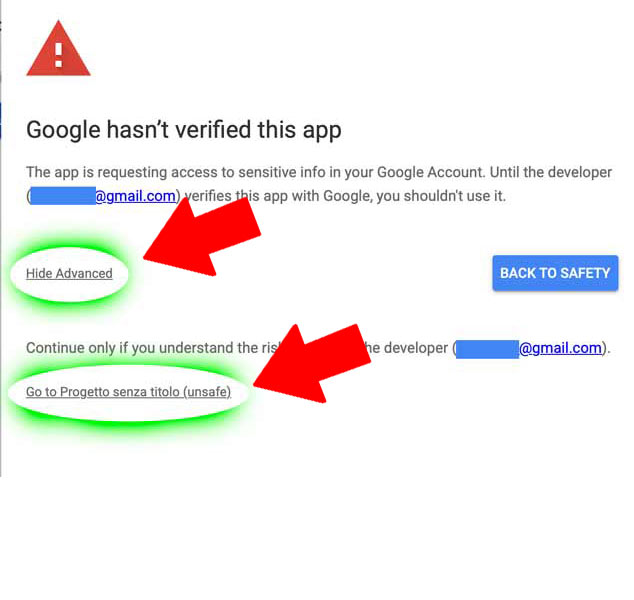
5. Bypass warning
Click on Advanced and at the bottom click on Go to... (unsafe).
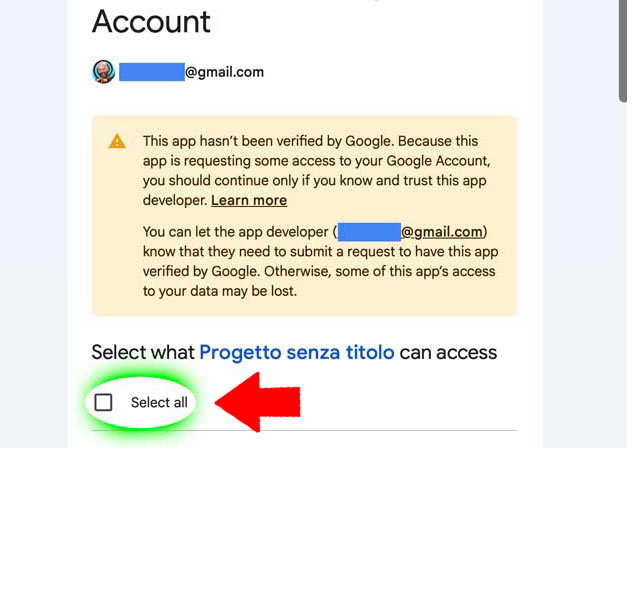
6. Allow permissions
Check the Select all box (or scroll down) and click Continue / Allow.
At the end of the process, Google will provide you with a Web App URL. Copy it and keep it ready for the next step!
Final Synchronization
You're almost done. Paste below the URL that Google provided you at the end of the previous step.